Showing posts with label video. Show all posts

Monday, May 4, 2015

Stream Your Videos to Students Using Google Drive


Stream Your Videos to Students Using Google Drive


By John Buckingham
A few professors have approached the technology and learning department asking about their options for sharing rich, engaging media with students in the context of their courses. A lot of this media, especially videos, can be difficult to share, given the large sizes of these files and the constraints of available space and size limitations when uploading those files to Courses (powered by Sakai). Making matters even more difficult is the fact that a lot of faculty want to regularly reuse and share this content with students on a consistent, class-by-class basis.

Enter Google Drive powered by Pepperdine’s Google Apps platform. This platform can easily stage all of your media needs, with a whopping unlimited storage space available for your account. You can upload and store any file here and then gather a link to share that content with students. Even more impressive is the fact that uploaded videos can be streamed by the click of a button. This offers the enormous advantage of saving students from needing to download the video file for viewing. Gone are the days of worrying about large file sizes and the size constraints when uploading rich media!

If you have not yet explored and signed up for Google Drive, then visit google.pepperdine.edu to get started. It’s a quick sign up process that’ll unlock all of this potential for your classroom!

To upload a movie file to Google Drive, log in to Google Apps, and make sure that you’re in the Google Drive area. If you are not, you can click on the rubik’s cube icon to access the Drive.


Once you are in Google Drive, click the red "New" button (Step 1) on the top left, and then select "File Upload" (Step 2).
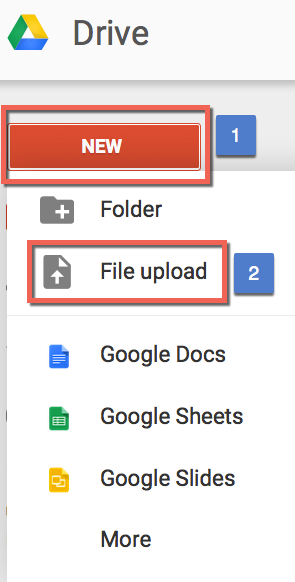

At this point, you will be prompted to locate the video file you wish to upload.
After the file has been uploaded, you’ll want to share it! To share this with students, right click on the file and select “Share."
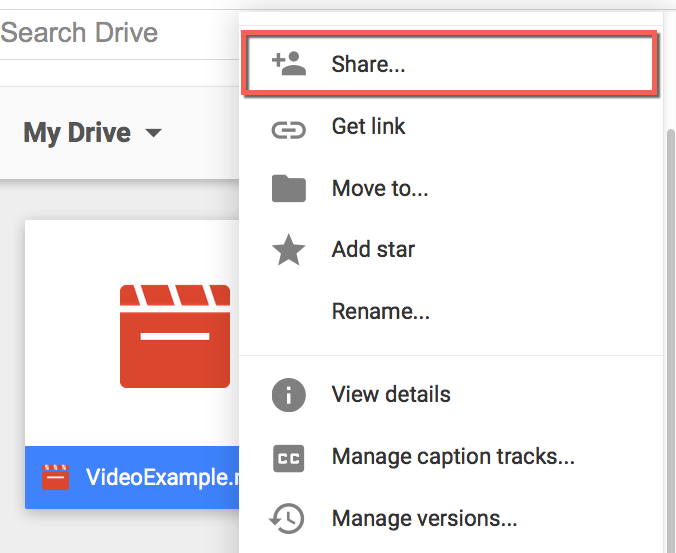

When the pop up opens, select “Advanced.”
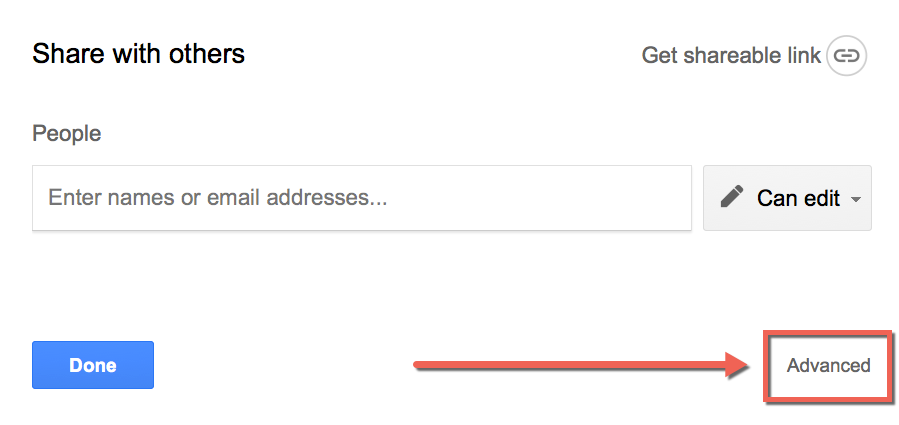

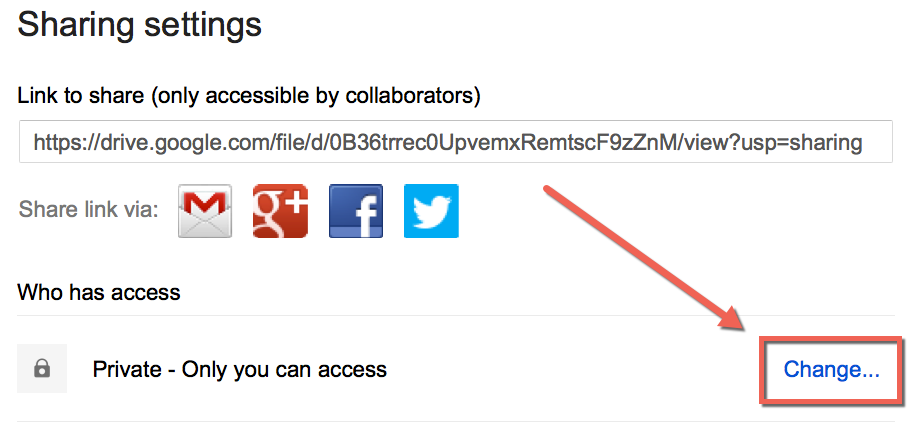
And then select “Change …” under “Who has Access.”

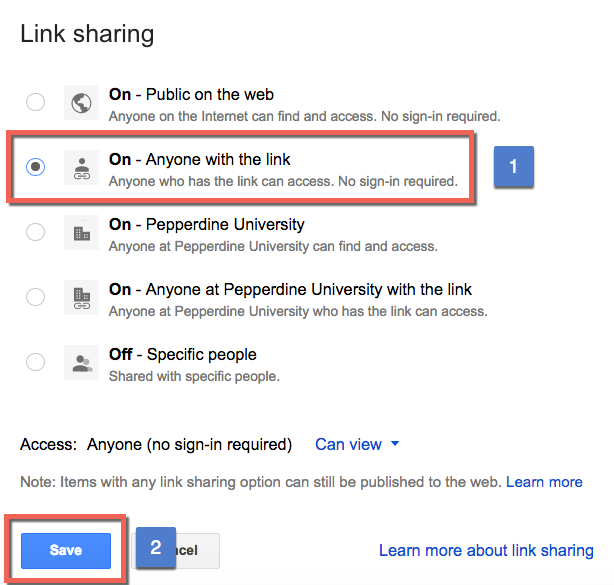
Make sure to select the option of “Anyone with the link.” Then click “Save.”

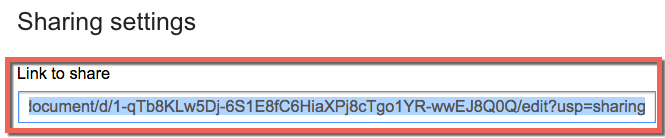
Now, simply gather the link in the resulting page under “Link to Share.” This is the link which you can distribute to students.

Caution: Before distributing the link to students, be sure to test the link yourself. This can be done by first logging out of your account and then pasting the link into the browser URL. These videos must be processed in Google Drive before they are ready to stream. So while testing, if you encounter the error “This video is currently unavailable,” that means that the video is still being processed and must be completed prior to distributing the link.

Once you have tested the link yourself and it works to your satisfaction, let the distribution commence! You can copy and paste the link to an email, an announcement in Courses (Powered by Sakai), or even add a Site URL link within the Sakai site Resources folder.

If you have any questions about the process outlined above or seek advice on the best methods for distributing video links to students, please contact us at Technology & Learning for a consultation!

Best,
John C. Buckingham III

John.C.Buckingham@pepperdine.edu


Sunday, August 17, 2014

Simple Code Hack to Avoid Media Overlap

A Smidgen of Responsive Design for Faculty

by Alan Regan

Has this ever happened to you? You've embedded media in a blog, web page, or learning management system that has a right column, and your media overlaps the site's right column?


The reason? Your media is wider than the space available. Some web pages will adjust and push the right column, others will overlap like the above image shows.

In the event that you have access to modify the HTML code with your embedded media, a simple coding hack may be able to help. With one "style" addition, you can ask the page to please not display the media (image, video, etc.) beyond the limits of its content column or container.

The Code To Add: style="max-width: 100%;"


Here is an example using YouTube iframe embed code.

BEFORE

<iframe width="560" height="315" src="//www.youtube.com/embed/zpGcjQHPpTc" frameborder="0" allowfullscreen=""></iframe>

AFTER

<iframe width="560" height="315" src="//www.youtube.com/embed/zpGcjQHPpTc" frameborder="0" allowfullscreen="" style="max-width: 100%;" ></iframe>


Give it a try! I hope this will help your media stay within the bounds of your blog post, column, or frame. Works great in Sakai! If only we could convince YouTube and other media sites to add this simple code to the embed process by default...

Resources for the Tech-Curious:


Thursday, May 22, 2014

Gamification of education in video Start Point to end


Gamification of Education:

This article is about all the good resources on Gamification of Education.  Much of this has been posted previously, but I decided to make a clear guide to the top videos for Gamification Education.  The best overall is the new month long 4 episode series on Extra Credits about Gaming and education.  However, if you don't know the basics it's confusing or at least less engaging then if you were familiar with the concept.  If you’d like to apply game like learning to the class watch the following videos in the order provided and you will be ready to start your journey.   To begin lets watch a video on what Education and Game like learning is about.  Nothing is as good as the following video for that.


After, I would recommend diving a little deeper into some of the concepts.  The video below talks about the importance of student choice in classes, and shows how faculty can apply choice to classes.


Once you learn about student choice.  Watch this amazing video on failure also by extra credits.


Once you learn about how classes and homework may invoke fear in students watch this last video to learn about mastery based learning and eliminating fear in classes through the appropriate use of assessments and there interaction with failure.


If you've watched all the videos and you still want to know more about gamificaiton and education.  Now watch the rest of Extra Credits.  Here is playlist of all there videos of games and education.  Good luck and if you use this information in your class let me know.


Monday, April 14, 2014

Education through Video

by Keenan Kibrick


I decided to change the format this week for the blog.  Instead of reading it’s time to watch.  I have 2 videos for you that are both very good and about education.  One is quick and the other is longer, but both will make people think and reflect about the practice of education.

Extra Credits: Games in Education


Why I Watched It:   I love so many videos from Extra Credits and I think they are great educational resources.  I recently watched one about Games in Education and I wanted to compare it to the idea of Gamification (the concept) in education.

Why I wrote about it:   This video addressed a misconception about the gamification of education that I felt needed clarification. When people first hear about the concept of gamification of education their first thought is it means bringing games into the classroom.  In reality, it’s about making the classroom a game.  This video reflects why bringing games into the classroom isn’t necessarily a plan for success.  It focuses on the aspects about video games that make them so enjoyable to play, and highlights that bringing them into the classroom may hinder a games appeal.  The choice of playing a game impacts a student’s desire to play games, and the piece focuses on how a classroom requirement might reduce that choice. If video games are placed in a class for a grade or credit then the students lose that choice over their actions and the game becomes ineffective in the classroom.  Technology in education is great for the future of education, but we need to be cognizant about how we implement technology in the classroom.  Imposing technology is like imposing games, it’s not as effective as allowing technology to naturally blend into the classroom.  This is another great commentary on education and technology and I recommend all read it to spark creativity on ways to implement games in the classroom.

It’s perfect for:  Wanting to implement games in the classroom, Technology implementation best practices, Favoring pedagogy over technology and letting learning lead technology implementation


Talking Creativity with Dr. Jonathan Plucker

https://www.youtube.com/watch?v=ugcpdO2EoJI#t=17


Why I watched it:  I know the interviewer Tim Green very well.  He was my professor when I was in Graduate School at CSU: Fullerton.  He posted up this interview and at first it was just interesting about creativity, however by the end when they discussed merging technology and creativity it became a video that I began taking notes on to help apply to classrooms.

Why I kept reading it:   It was research based, and it focuses on defining the word creativity and trying to help standardize the terminology in terms of the education community.  It gives example of how to phrase questions for students to evoke creativity in their writing, and helps faculty be cognizant about question writing on assignments.  Around 16 minutes in is a great discussion about how a 15 word instruction for assignments hindered creativity for an entire class.  The realization of this gave me pause, and helped me reorganize the words I use on assignments.  20 minutes into the video they begin the discussion of technology and creative output which is also fascinating, and really helps guides the academic discussion about the online community as a place that fosters creativity.  

It’s perfect for:  Rethinking learning, wanting to improve creativity in the classroom, researched/tested methods of incorporating creativity

Monday, March 5, 2012

How to embed a YouTube video on Courses/Sakai

By Alan Regan

How to Embed a YouTube Video in the Forums of Courses (powered by Sakai)


YouTube is a resource for both entertainment and education. The videos can contain helpful, controversial, and thought-provoking content. So, how do you post a YouTube video within the Forums tool of Courses/Sakai?

Instructions:


YouTube.com

  1. Visit http://www.youtube.com
  2. Find a video you want to share
  3. Click "Share" below the video
  4. Click "Embed"
  5. Check the box for "Use HTTPS"
  6. Check the box for "Use old embed code"
  7. Copy the code

    Forums tool of Courses (powered by Sakai)

    1. Log into http://courses.pepperdine.edu by clicking "Pepperdine Login" and entering your NetworkID and password
    2. Go to the course or project site by clicking the tab or clicking its name in the "All My Sites" tab
    3. Click Forums in the left menu
    4. Click the desired topic
    5. Click "Start a New Conversation" or reply to an existing message
    6. Enter the message you want to say
    7. Click "Source"
    8. Place your cursor where you want the video to display
    9. Paste the code
    10. Click "Source" again (very important!)
    11. Click "Post"
    NOTE: Embedded videos will be viewable by users with a PC or Mac laptop running the latest Adobe Flash Player add-on for your web browser. iPad and iPhone users may not see the video. We recommend that you embed and provide the link to the source video, too.