Showing posts with label google docs. Show all posts

Monday, May 4, 2015

Stream Your Videos to Students Using Google Drive


Stream Your Videos to Students Using Google Drive


By John Buckingham
A few professors have approached the technology and learning department asking about their options for sharing rich, engaging media with students in the context of their courses. A lot of this media, especially videos, can be difficult to share, given the large sizes of these files and the constraints of available space and size limitations when uploading those files to Courses (powered by Sakai). Making matters even more difficult is the fact that a lot of faculty want to regularly reuse and share this content with students on a consistent, class-by-class basis.

Enter Google Drive powered by Pepperdine’s Google Apps platform. This platform can easily stage all of your media needs, with a whopping unlimited storage space available for your account. You can upload and store any file here and then gather a link to share that content with students. Even more impressive is the fact that uploaded videos can be streamed by the click of a button. This offers the enormous advantage of saving students from needing to download the video file for viewing. Gone are the days of worrying about large file sizes and the size constraints when uploading rich media!

If you have not yet explored and signed up for Google Drive, then visit google.pepperdine.edu to get started. It’s a quick sign up process that’ll unlock all of this potential for your classroom!

To upload a movie file to Google Drive, log in to Google Apps, and make sure that you’re in the Google Drive area. If you are not, you can click on the rubik’s cube icon to access the Drive.


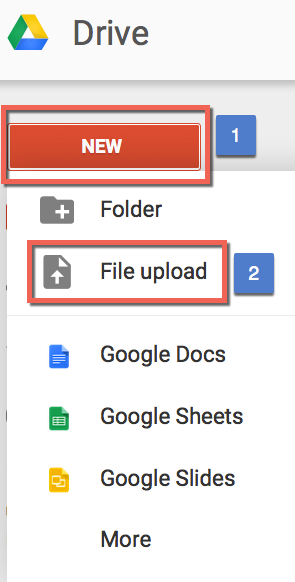
Once you are in Google Drive, click the red "New" button (Step 1) on the top left, and then select "File Upload" (Step 2).

At this point, you will be prompted to locate the video file you wish to upload.
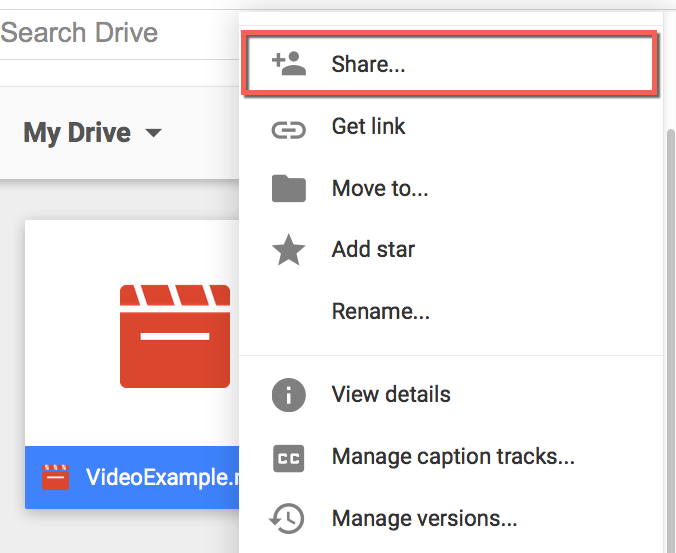
After the file has been uploaded, you’ll want to share it! To share this with students, right click on the file and select “Share."

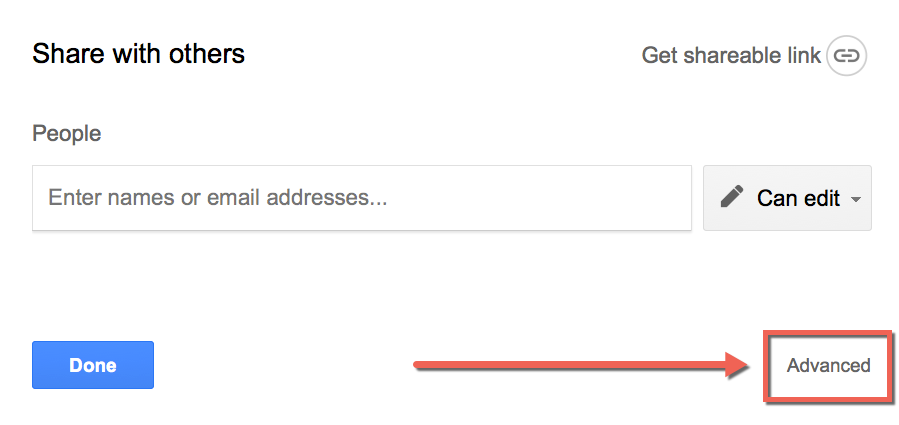
When the pop up opens, select “Advanced.”

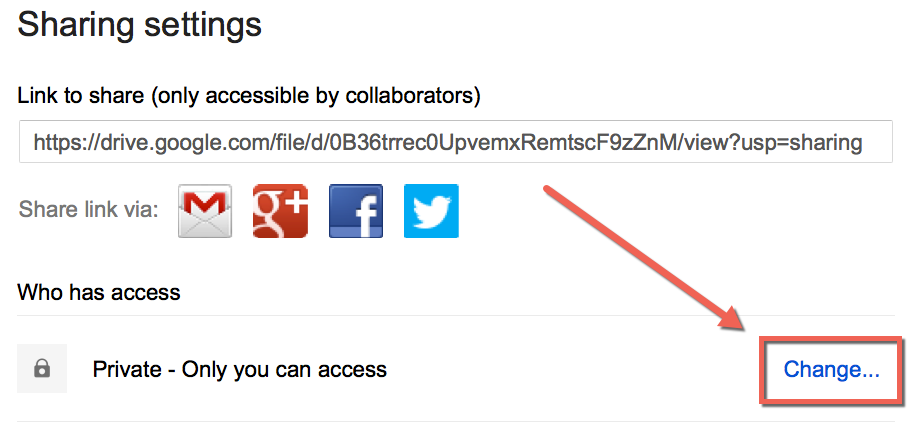
And then select “Change …” under “Who has Access.”

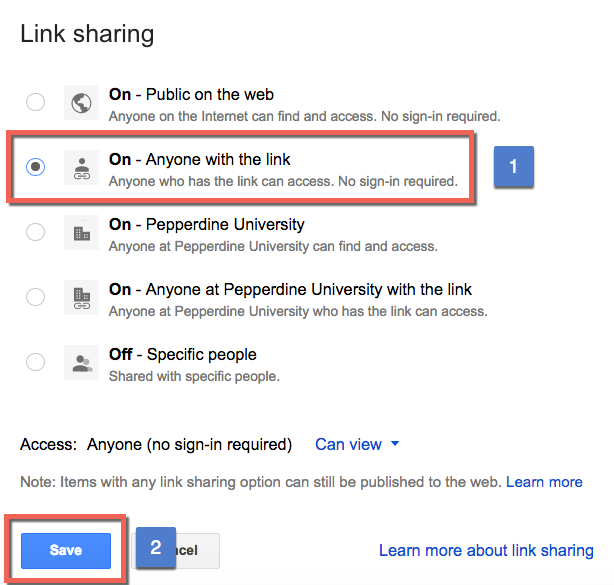
Make sure to select the option of “Anyone with the link.” Then click “Save.”

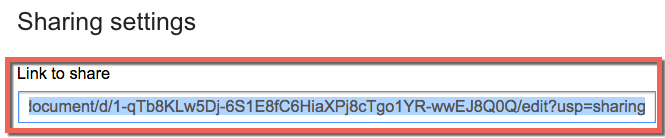
Now, simply gather the link in the resulting page under “Link to Share.” This is the link which you can distribute to students.

Caution: Before distributing the link to students, be sure to test the link yourself. This can be done by first logging out of your account and then pasting the link into the browser URL. These videos must be processed in Google Drive before they are ready to stream. So while testing, if you encounter the error “This video is currently unavailable,” that means that the video is still being processed and must be completed prior to distributing the link.

Once you have tested the link yourself and it works to your satisfaction, let the distribution commence! You can copy and paste the link to an email, an announcement in Courses (Powered by Sakai), or even add a Site URL link within the Sakai site Resources folder.

If you have any questions about the process outlined above or seek advice on the best methods for distributing video links to students, please contact us at Technology & Learning for a consultation!

Best,
John C. Buckingham III

John.C.Buckingham@pepperdine.edu


Tuesday, November 15, 2011

Sharing a Table of Information in Sakai

By Alan Regan

A professor inquired about sharing a table of information with his students. He wrote asking how to "... create a table of text that can be edited in the Resources section of Sakai. Right now I'm having to keep updating a Word document with each addition of information and it would be easier to do this in Courses."

Here are a few options to consider:
  1. Create an HTML document in Resources
  2. Create a Google doc or spreadsheet and share the link in Resources
Create an HTML Document in Resources

Using the rich text editor, a professor can create an HTML page in Resources (Resources > Add > Create HTML Page). Clicking the Table button in the rich text editor, the professor can specify the number of rows and columns desired. Once created, the professor can easily add or delete rows/columns by right-clicking in the row or column and making the appropriate selection.

Whenever the professor needs to update the information, he/she would return to Resources and edit the page (Actions > Edit Content). If the professor is familiar with HTML, he/she can click the "Source" button and modify the source HTML code to customize the table design with more detail.

Create a Google Doc or Spreadsheet and Share the Link in Resources

Pepperdine University offers Google Docs for Education for our community. It's available at http://google.pepperdine.edu

The professor can use the Google Docs service to create a new document or spreadsheet and create the table of information as desired. When sharing the document, click "Change" to modify the permissions. Select "People at Pepperdine University with the link" or "Anyone with the link" if the professor may have non-Pepperdine University participants such as guest lecturers. NOTE: Think carefully. Don't enable editing unless you want all class participants to be able to edit the document.  Also, if you select "anyone with the link" then if participants in the class post the link online or email it to others, then anyone with access to the link can see the information.

Copy the link from the Google document. Return to Courses and go to Resources in the course site. Add the link by clicking Add > Add Web Links (URLs). Paste the web address and give it a title (if desired). Click Add Web Links Now to post the link.

There are likely other solutions to this need, too.  We hope this information helps!

Thursday, November 3, 2011

Box.net offers 50GB of free online storage for mobile device sign ups!

By Alan Regan

Do you own an iPhone or iPad? If you don't have a Box.net account and you're looking for some online storage, then check out the following offer: http://blog.box.net/2011/10/12/were-giving-ios-users-insane-amounts-of-free-storage-box50gb/

The company claims that you can receive 50 GB of free online storage forever, but you have to act before December 2, 2011. Normally they offer 5 GB of free storage.  To take advantage of the offer, you need to download the free app from and click "Sign Up" for a new account from your device (not from your computer).

Recently, Apple launched its iCloud service which offers 5 GB of free online storage. And Dropbox.com offers 2 GB of storage for free.

LINKS: