Showing posts with label google. Show all posts

Monday, May 4, 2015

Stream Your Videos to Students Using Google Drive


Stream Your Videos to Students Using Google Drive


By John Buckingham
A few professors have approached the technology and learning department asking about their options for sharing rich, engaging media with students in the context of their courses. A lot of this media, especially videos, can be difficult to share, given the large sizes of these files and the constraints of available space and size limitations when uploading those files to Courses (powered by Sakai). Making matters even more difficult is the fact that a lot of faculty want to regularly reuse and share this content with students on a consistent, class-by-class basis.

Enter Google Drive powered by Pepperdine’s Google Apps platform. This platform can easily stage all of your media needs, with a whopping unlimited storage space available for your account. You can upload and store any file here and then gather a link to share that content with students. Even more impressive is the fact that uploaded videos can be streamed by the click of a button. This offers the enormous advantage of saving students from needing to download the video file for viewing. Gone are the days of worrying about large file sizes and the size constraints when uploading rich media!

If you have not yet explored and signed up for Google Drive, then visit google.pepperdine.edu to get started. It’s a quick sign up process that’ll unlock all of this potential for your classroom!

To upload a movie file to Google Drive, log in to Google Apps, and make sure that you’re in the Google Drive area. If you are not, you can click on the rubik’s cube icon to access the Drive.


Once you are in Google Drive, click the red "New" button (Step 1) on the top left, and then select "File Upload" (Step 2).
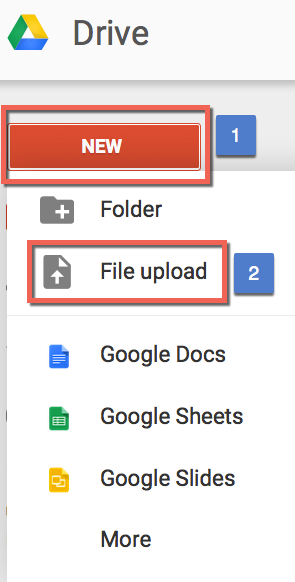

At this point, you will be prompted to locate the video file you wish to upload.
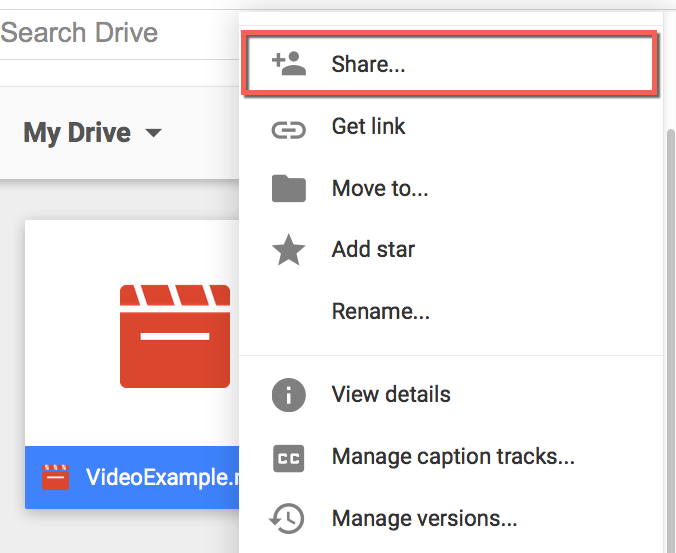
After the file has been uploaded, you’ll want to share it! To share this with students, right click on the file and select “Share."

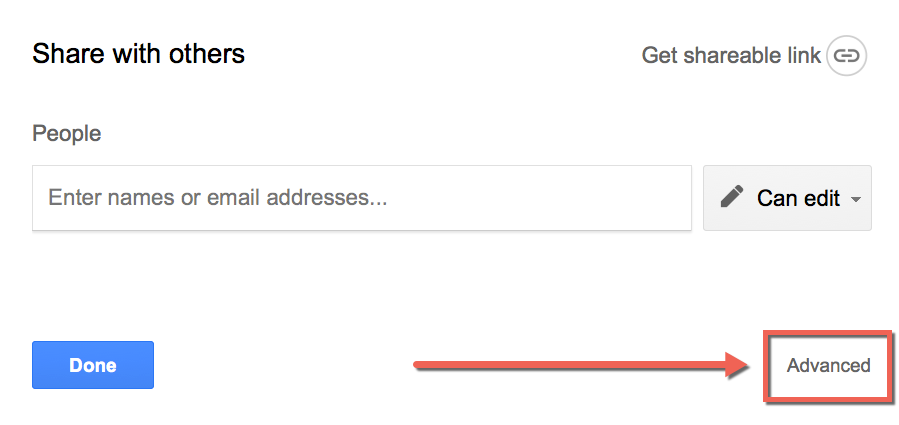
When the pop up opens, select “Advanced.”

And then select “Change …” under “Who has Access.”
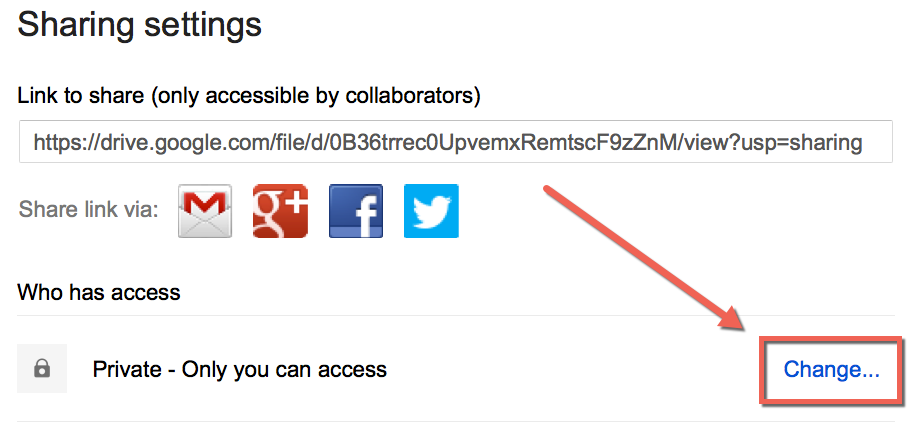

Make sure to select the option of “Anyone with the link.” Then click “Save.”
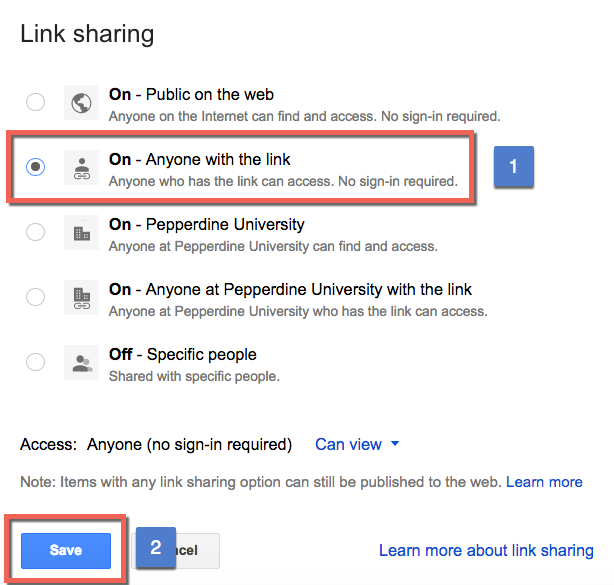

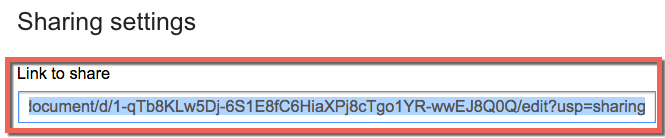
Now, simply gather the link in the resulting page under “Link to Share.” This is the link which you can distribute to students.

Caution: Before distributing the link to students, be sure to test the link yourself. This can be done by first logging out of your account and then pasting the link into the browser URL. These videos must be processed in Google Drive before they are ready to stream. So while testing, if you encounter the error “This video is currently unavailable,” that means that the video is still being processed and must be completed prior to distributing the link.

Once you have tested the link yourself and it works to your satisfaction, let the distribution commence! You can copy and paste the link to an email, an announcement in Courses (Powered by Sakai), or even add a Site URL link within the Sakai site Resources folder.

If you have any questions about the process outlined above or seek advice on the best methods for distributing video links to students, please contact us at Technology & Learning for a consultation!

Best,
John C. Buckingham III

John.C.Buckingham@pepperdine.edu


Thursday, August 21, 2014

Google Classroom

Unpacking Google Classroom: What it Does and What You Need to Know

by Alan Regan

There has been quite a bit of buzz about Google Classroom for the past several months. Back in May, Google launched a PR campaign and asked interested teachers to sign up for a preview.  It started with a limited set of folks, then in July they started to roll out more and more sneak peeks.  Now Google has officially announced the release of Google Classroom to all Google Apps for Education customers.

What Can You Do With Google Classroom?

Google Classroom is new. As such, it only has a small number of features. If professors are expecting equivalent features to a full-blown learning management system, they will be disappointed. However, Google likely plans to build on this platform and roll out additional functionality over time. In the meantime, what can Google Classroom help you do today?
  • Announcements. Professors can post text announcements that appear in the "classroom" in the announcement stream. The announcement can include a file attachment, link to a Google Drive item, YouTube video, or website link.
  • Assignments. The teacher can create a basic assignment that students can submit for grading.
  • Course Description. In the "About" area, the teacher can post a description for the class, list the room details, and post materials.
  • Email. From the "Students" area, a professor can email individual, select, or all students through Google Mail integration.
  • Invite Students. To populate the class with students, the teacher can "Invite" the participants to join the class.
  • Materials. At the bottom of the "About" area of a class, the teacher can upload attachments, link to existing Google Drive items, link to a YouTube video, or share a website link.
 If you explore or experiment, you'll see that it has a similar feel to Google+ since the main page is the "stream" where postings of announcements and assignments can be found.

So What Is Missing from Google Classroom?

While Google Classroom is interesting to explore, it would be difficult for a university professor who expects more advanced functionality to teach with this tool. Again, it is likely to expand over time, but as of this writing the service is missing some core functionality:
  • No Gradebook. While professors can create assignments and grade each student within the assignment, there isn't a central gradebook to summarize the overall progress of each student.
  • No Automated Course Creation. At this time, there isn't a mechanism to automatically create classes based on official class data from WaveNet.
  • No Automated Student Enrollment. At this time, there isn't a mechanism to automatically enroll or unenroll students based on official school registrations. Professors must "invite" students manually and students must accept the invitation (or join by using a join code).
  • No Plagiarism Detection. There isn't a tool or feature to scan an assignment submission for potential plagiarism. Google is the master of search, so perhaps this could happen in the future.
  • No Sequenced or Modular Learning. While there is a stream where you can scroll back chronologically to past announcements or assignments, and an area in the Abour section to post materials, there isn't a place to create a series of text and media rich content for learning modules or lessons. 
  • And the list goes on...

What are the Gotchas?

With any system, there is usually a set of gotchas or known issues. The key gotcha relates to the assignment process. Actually, it's not as much of a gotcha as a "be sure to be aware" notice.

When a student submits a document to a Google Classroom assignment, that document will transfer from the student to the teacher's Google Drive folder (moving it) and switching the permissions.  The teacher becomes the owner and the student will now only have view privileges. On return of the document to the student, however, the professor's permissions shift, the student becomes the owner (and if the professor wants to edit the document, he or she will need to request permission from the student). So it's key that both teacher and student understand these permission and location items.

Wishlist Items

  • Integration of Hangouts.
  • Integration with Sites (or similar or something new) to create structured learning opportunities.
  • Plagiarism Detection.
  • Gradebook.
  • LTI Integration to plug Google Classroom into learning management systems or visa versa.

If a Pepperdine Professor Wants to Explore...

Google Classroom is enabled on our Pepperdine Google Apps for Education service. Professors simply need to visit http://classroom.google.com, log in with their Pepperdine University Google Apps account, choose "Teacher," and explore away!

Conclusion


In summary, Google Classroom is a basic tool with promise.  It seems perfect for K-12 teachers in schools that don't have a central learning platform.  For higher education, though, it is not poised to replace a formal learning management system. At least not right now.  We'll keep an eye out and see what new features or enhancements Google may roll out down the road.

Resources:

Friday, February 28, 2014

Week 4 Links and analysis

Building e-learning

by Keenan Kibrick

Good afternoon Pepperdine University audience, I wanted to have one more link group to focus on the topic of best instructional design practices in the classroom.  I believe these resources are very useful and I hope you will find them useful as well.


Learner help to build e-Learning

Why I opened it:  This article was opened because it appeared to help facilitate a great theory of education, making the classroom based on what students want/need, and seeking out student opinion.  I was curious to see how to improve classes before a class starts based on previous year data.  I always follow this theory after a class finishes, but I was curious to see how the data could be used for the next semester.

Why I kept reading it:  It divides tips for how to reflect on your class before you start it.  It’s all about developing new courses, but it could also be used for someone who is trying to re-develop a course they are teaching. It takes tips from the idea of thinking like a designer with the purpose of teaching to a specific audience.  This designer method is very good for faculty, but even more important in an online class or blended classroom.  Online and blended classes should be laid out as much as possible on day one because more of a class is public at a time in an online environment then a face-to-face environment.  Students need to be able to navigate the different tabs to know what to expect for the class.  Building a fully prepared online class before the first day is very important, and these steps help make sure that the class which is built mirrors best design practices.

For more information about this I also recommend the following Extra Credit Video:


It’s on thinking like a designer.  While the video is for game design I find a lot of it can be applied to class design. Both this video and the article provide great ideas to help prepare for a new class, and how to re-examine to improve a class. This idea overall of thinking like a designer is a great practice and the document really helps follow user experience feedback methods to improve an online class.


It’s perfect for:  Online faculty, faculty who use courses to improve their class, and faculty who want to learn best design practices applied to the field of education

Evaluating eLearning


Why I opened it:  I found the above link while looking at this link.  http://elearningindustry.com/the-anatomy-of-great-e-learning-quiz-questions.  The first link was about ways want to improve the type of questions faculty can provide on exams, and when they mentioned it was about e-learning I was curious to explore the differences between e-learning questions and face-to-face questions.  The article though wasn’t that good, to me, but it did have a link to an article about evaluating our own online classes. This link turned out to be worth it and a great article about evaluating a person’s own online course. 

Why I kept reading it:  It’s a simple short blog post about 3 ways people can also think like a designer for classes.  I highly recommend reading this article after the two posts from the first article.  It talks about user testing in online classes, feedback forms inside classes, and tracking student achievement after a class.  It has great strategies that are worth exploring for a class, and can even expand past the online and blended classroom for ideas.

It’s perfect for:  Class improvement, more info. to think like a designer, faculty who want to read a short but valuable way to re-think the learning process.


Monday, October 14, 2013

Google, Ads, and Choices

Google Ads and Endorsements:

The choices you have and how often you have to repeat those choices

by Alan Regan

On November 11, 2013, Google will make changes to its privacy and terms of service. You can review the changes.

There are two specific settings you'll need to review:
  • Ads settings (not new, per se, but they don't make it easy to persist!)
  • Endorsement settings (new!)

GOOGLE APPS AT PEPPERDINE IS (MOSTLY) IMMUNE

First things first.  When using Pepperdine's Google Apps for Education service (via http://google.pepperdine.edu), you will NOT receive ads in Google Mail or Google Search.  Also, we have disabled the Google+ endorsement feature at the domain level, so when using your Pepperdine Google account you do not need to worry about those ads or endorsements! These are some of the benefits of the Apps for Education service that we enjoy.  Also, there is additional storage (30 GB!) plus enhanced Google Drive and Google+ sharing options to better adhere to FERPA guidelines.  When using Google services for academic purposes we strongly recommend that you use your Pepperdine Google account instead of your personal Google account.  When using Google services for official Pepperdine work, you should only use your official Pepperdine account.  You can learn more about Pepperdine's Google policies at the bottom of the following page: http://community.pepperdine.edu/it/tools/googleapps.htm

Of course, we are "mostly" immune, since Google owns a number of sites and services.  It's great that we won't receive ads in Google Mail or Google Search.  Of course, other Google sites that are not core Google Apps for Education services will still display ads. Example: YouTube.

YOUR PERSONAL GOOGLE ACCOUNT IS NOT IMMUNE

When using your personal Google account, you'll need to make some decisions on how you want Google to use your searching, Google mail, and other content to deliver ads.  You also need to decide whether you want Google to share your comments and +1s related to specific products.  The latter is the brand new item that's making the news, since your profile photo and comments may be displayed to your friends or the public, depending on your settings.

Ads: Your Choices are Fragile

So, you have choices when you use various services.  You can opt out of marketing emails.  And you can opt out of some ads, but usually not all ads.  Afterall, most online services make their money just like newspapers do -- by ad placement.  You enjoy "free" services because of the advertising model; it's the bargain you make when you choose one of these services.

At Google, you can choose to opt out of targeted ads through the Google Ads setting.  Basically, asking Google not to use your mail, search, or other online footprints to deliver ads specific to you interests, gender, or other factors.  Rather than deliver targeted ads, they'll simply deliver general ads.  So, you'll receive ads one way or another.

But I mentioned that the choices you make are fragile.  What do I mean?  The "catch" is that your choice is specific to the browser and computer/device you are currently using.  The choice is stored in a "cookie" in that browser.  So, it's fragile in that it's not global (you must repeat the process on each web browser and device you plan to use) AND it's temporary.  If you ever clear your cookies, then your choice is cleared and you'll need to update your ad settings again... and again... and again.  They don't make it easy!

Endorsements: Your Name and Photo Exposed

This is a new feature. Basically, Google wants to use your comments or ratings about a product or service to promote them to your friends or the world.  Facebook already does this, when you see in your news feed that friends like specific company pages, etc.  Google wants to leverage its social media platform, Google+, in a similar way.

If you never sign up for Google+ on your personal account, you shouldn't need to worry.  If you do, then you'll want to decide whether you want to opt out of this feature.  You can opt out here:
https://plus.google.com/settings/endorsements?hl=en

Remember, Google Apps at Pepperdine is not impacted by these changes since our education domain is immune to ads and the Google+ endorsements feature.  You'll make these choices on your personal Google account(s).

LEARN MORE


Tuesday, July 16, 2013

Google+ Hangouts: A Must-Have Easy-To-Use Technology Tool in Academia

Google+ Hangouts: A Must-Have Easy-To-Use Technology Tool in Academia 

by Varun Khanna
Google Hangouts are free audio & video online sessions. Fun. Easy-to-Use. Interactive.

What is Google Hangout?
An easy-to-use, free, online interactive and engagement audio/video tool for small groups (up to 15 for Pepperdine community).

Who can use Google Hangout?
Anyone with a Google+ account. 

What devices does Google Hangout support?
PC, Mac, or Smartphone/Tablet (iPhone, iPad or iPad mini).

10 things to know about Google+ Hangouts for Pepperdine faculty and student community
1.  Go to http://google.pepperdine.edu and click on Google Drive. Sign in using your Wavenet ID credentials.  Signing up for free at google.peppedine.edu has advantages. You get 30GB of cloud hard drive space for free. Additionally, Google Hangouts allows you up to 15 users (as opposed to 10 when you sign up with your personal Gmail account). Lastly, you can communicate with your Pepperdine community at lightning fast speeds.
Google.pepperdine.edu. Sign up to get 30 GB free.
2.  On the top left click on +You.  After you have signed up for Google+ the same link will change to +YourName. During the sign up process it is imperative that you list your age > 13 or Google will not allow you to sign up for Hangouts. 

Before Signing up with Google+

Click on +You and proceed to sign up for a Google + account
 

After Signing up with Google+
+YourName confirms that you have signed up for Google+ and can use Google Hangouts
3. Look for thesymbol on the right side once you are in Google +. This is the Google Hangout symbol.

4. You can create an immediateGoogle Hangout by inviting students/colleagues that are already online. 

5.  Or, you can go the left sidebar and create a futureGoogle Hangout event and invite students/colleagues. Note: There is a maximum of 15 invitees (including yourself for a Pepperdine Google Hangout event).
Google Side Bar menu. Click on Events to create Google Hangout session.
6.  Alternately, you may go to Google Calendar and create an event and invite your colleagues or students to the Google Hangout event. (Recommended)
  • Title your Google Hangout Event
  • Choose date and time. Important: Choose your time zone. This is especially important for online sessions when students and professor are spread out across different time zones.
  • If you are going to be using video please do not forget to click on Add Video Call.
  • You can set up Alerts to remind you about your upcoming Hangout meeting.
  • As Pepperdine faculty/students you can invite up to 15 (including yourself).
  • SAVE will allow you to send invites and the event will automatically be added to your Google Calendar
Setting up Google Hangouts using Google Calendar (recommended)
7.  You may also choose to record your Pepperdine Google Hangout session on YouTube. With Pepperdine Google Hangouts you are not restricted to the usual 15 minute recording as you would be on your regular Gmail account. 

8.  Note: your Google Hangout session will be made public by YouTube unless you change the video settings (Video Manager)  to private after your Google+ Hangout session has finished recording. 

9.  Too may users? Bandwidth issues? Jerky video? Turning off your Google Hangout camera with a single click may help. If you have your image uploaded it will default to the photo. You can also turn off your microphone within Google Hangout itself.

10.   During your Google Hangout, you can share in real time Google docs, folders, presentations, desktop as well videos with your student group.

You can always email techlearn@pepperdine.edu for a one-on-one consultation to learn how to use Google Hangouts.