Showing posts with label images. Show all posts

Wednesday, March 4, 2015

Build Upon your Creative Literacy by Enhancing your Visual Literacy

Build Upon your Creative Literacy by Enhancing your Visual Literacy


By John C. Buckingham

Here is a question that might make you scratch your head: what is creative literacy? Perhaps you have never even seen these two terms together or pondered what could be “creative” about literacy? But the question is a note worthy one as it relates to academia in particular!

Let’s put the question in different terms. What is one form of literacy that empowers or channels your creative side? And in the context of this space here, how can you leverage that literacy to enhance the learning environment for your students?

I’m going to suggest one form of literacy that is absolutely critical to engagement and learning: visual literacy. In short, visual literacy refers to the ability to find, interpret, evaluate, use and produce images. As a current graduate student at California State University Long Beach, one of the biggest challenges I’ve observed that we all struggle with is the ability to produce and present rich visual images conducive to the course material.

Given that we live in a digital world with the advent of the Internet, learners are interacting with images on a completely different scale.* We students expect images as a learning tool because it’s becoming one of the most important ways that we communicate with each other. One look at networking sites like Facebook or Reddit will immediately illustrate that fact.

So, how can you enhance your creative literacy through the channel of visual literacy? A digital tool like Adobe Photoshop will empower you to create and utilize images in a way that promotes meaningful and effective interactions. It’s true that this tool has a learning curve, but the outcomes will be well worth the effort. Making your own images also has the advantage of avoiding copyright challenges.

If, however, you are short on time, try photographing some images in relation to your subject materials for a lively discussion. Using more simplified tools like Microsoft Paint, Snagit or even xMind can give your images the edge that simple, boring text cannot. As students, we want to see your creative side show itself through visual aids.


If you use Adobe Connect for online classes, there are a number of creative, “out-of-the-box” pods that can engage students on a visual level. One pod you can visually stimulate them with is the Word Cloud Pod. This pod provides a pictorial representation of words that would otherwise be perceived as dull data. The visual dimensions of this activity are the different fonts, sizes, layouts and color schemes that convey the prominence level of keywords pertinent to the subject material.
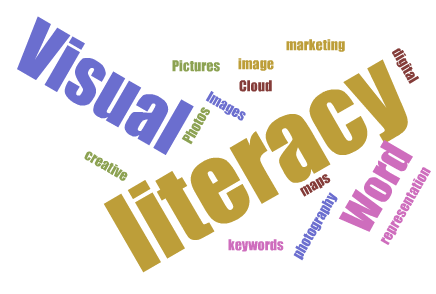

Hopefully some of these suggestions can invoke some useful cognition for channeling your creative energies and inspire you to augment your visual literacy. And as always, if you’d like an additional outlet with which to express your creative ideas, feel free consult with us at the Technology & Learning group!


Best,

John C. Buckingham

* Hattwig, Denise, Kaila Bussert, Ann Medaille, and Joanna Burgess. “Visual Literacy Standards in Higher Education: New Opportunities for Libraries and Student Learning.” Portal: Libraries and the Academy 14, no. 1 (2013): 61-89. 


Sunday, August 17, 2014

Simple Code Hack to Avoid Media Overlap

A Smidgen of Responsive Design for Faculty

by Alan Regan

Has this ever happened to you? You've embedded media in a blog, web page, or learning management system that has a right column, and your media overlaps the site's right column?


The reason? Your media is wider than the space available. Some web pages will adjust and push the right column, others will overlap like the above image shows.

In the event that you have access to modify the HTML code with your embedded media, a simple coding hack may be able to help. With one "style" addition, you can ask the page to please not display the media (image, video, etc.) beyond the limits of its content column or container.

The Code To Add: style="max-width: 100%;"


Here is an example using YouTube iframe embed code.

BEFORE

<iframe width="560" height="315" src="//www.youtube.com/embed/zpGcjQHPpTc" frameborder="0" allowfullscreen=""></iframe>

AFTER

<iframe width="560" height="315" src="//www.youtube.com/embed/zpGcjQHPpTc" frameborder="0" allowfullscreen="" style="max-width: 100%;" ></iframe>


Give it a try! I hope this will help your media stay within the bounds of your blog post, column, or frame. Works great in Sakai! If only we could convince YouTube and other media sites to add this simple code to the embed process by default...

Resources for the Tech-Curious:


Wednesday, February 12, 2014

Ice Breaker: Image Scavenger Hunt

Breaking the Ice

Find an Image that Represents Your View on the Subject

by Alan Regan

There are many ways to "break the ice" in an online or blended class, or even weeks before a face-to-face class begins. As they say, a picture says a thousand words. Why not combine both?

This is an example I created for the Social Entrepreneurship and Change program at GSEP.

ACTIVITY DETAILS

  • Introduce yourself and then briefly explain your understanding and vision for social justice philanthropy by searching for an image that you feel represents this for you.
  • Through this exercise, you will connect with one another, become comfortable with using the discussion forum tool, and have fun!

ACTIVITY INSTRUCTIONS

  1. Visit http://www.flickr.com/creativecommons/ 
  2. Search the creative commons repository for an image that represents your viewpoint on social justice philanthropy. Spend no more than five (5) minutes.
  3. Get the web address for the image and add it to your post.
  4. Write 1-3 sentences explaining how this image represents your viewpoint.
  5. Be sure to cite the image author by linking to the Flickr web address for the picture.
  6. Post your answer!

 TECHNICAL HOW-TO STEPS:

On Flickr
  • Visit http://www.flickr.com/creativecommons/
  • Click "See More" below the "Attribution License" section.
  • Search for your image. Short, simple terms are best.
  • Click the desired search result. 
  • On the right, scroll down. Click the "More Actions" button and then select "Download / All Sizes."
  • Click "Medium" (in most cases -- about 500 pixels wide)
  • Right-click and select "Copy Image Location" (or equivalent to copy the web address to the image)
  • Don't close the web page! You'll need the photographer's name for your citation!
On Courses/Sakai
  • Click "Start a new conversation" in the top tool bar.
  • In the text editor, click the "Image" button in the toolbar (second row, toward the right between the flag and the red "F" circle).
  • Paste the web address to the image in the URL field.
  • Click "OK."
  • Enter your reason for selecting this image. How does it represent your viewpoint on social justice philanthropy? Limit your response to 1-3 sentences.
  • Click "Post."
  • Done!

Resources:


Friday, March 29, 2013

Finding free images: Flickr's Creative Commons

by Alan Regan

Flickr.com - Finding Images You Can Use in Presentations for FREE


As we know, a key to retention of information is audience attention. To capture attention, a strong visual can tap into emotion, story, or the unexpected to spark a memorable moment. But how do we find powerful images?

In an earlier blog entry, I shared about Google Images and how to use the advanced settings to find images that you can freely use. Another major image repository, Flickr.com, also offers a way for you to search for free images. Flickr.com supports Creative Commons licensing. As users upload their own photographs, they can choose a license to open or restrict reuse of those images. Many users offer their photographs for free, simply asking that you acknowledge them as the source of the image (this is known as "attribution").

http://www.flickr.com/creativecommons

Which one's are okay to use?


License LabelDescription
AttributionAll the artist asks is that you acknowledge the creator. You should at least offer a "Photo By" credit with the image and may also provide a full reference at the end of a presentation, similar to sourcing quotes or research. You are free to create derivative works or use the image for commercial purposes. Learn more.
Attribution-NoDerivsThe artist asks that you acknowledge the creator and do not alter the image to create derivative works. You should offer a "Photo By" credit with the image and may also provide a full reference at the end of a presentation, similar to sourcing quotes or research. You should not combine the photo with other imagery or use it in your own art. You may use it for commercial purposes. Learn more.
Attribution-NonCommercial-NoDerivsThe artist asks that you acknowledge the creator, do not use the work for commercial purposes, and do not alter the image to create derivative works. You should offer a "Photo By" credit with the image and may also provide a full reference at the end of a presentation, similar to sourcing quotes or research. You should not combine the photo with other imagery or use it in your own art. You should not use the imagery for your own business or commercial benefit; may be used in education and for non-profit. Learn more.
Attribution-NonCommercialThe artist asks that you acknowledge the creator and do not use the work for commercial purposes. You should offer a "Photo By" credit with the image and may also provide a full reference at the end of a presentation, similar to sourcing quotes or research. You should not use the imagery for your own business or commercial benefit; may be used in education and for non-profit. Learn more.
Attribution-NonCommercial-ShareAlikeThe artist asks that you acknowledge the creator and do not use the work for commercial purposes. You may alter or create derivative works, but the resulting work must be shared with the same license for others. You should offer a "Photo By" credit with the image and may also provide a full reference at the end of a presentation, similar to sourcing quotes or research. You can combine the photo with other imagery or use it in your own art to create something new. You must offer the resulting work with the same or similar license. Learn more.
Attribution-ShareAlikeThe artist asks that you acknowledge the creator and post any derivative works with the same or similar license. You should offer a "Photo By" credit with the image and may also provide a full reference at the end of a presentation, similar to sourcing quotes or research. You are free to create derivative works and/or use the image for commercial purposes. Learn more.

Learn More: